


Hej, hur kan vi hjälpa dig?
- Hur man överför en plats mellan slutanvändare
- Installationschecklista
- Lösa felet med väntan på reservlösning (endast för installatörer)
- Hur man beställer en Point
- Hur man ansluter laddningsstationen till 4G under/efter installationen
- Hur man skapar och hanterar platser
- Vad är en plats och varför är den viktig?
- Hur man överför äganderätten till kunden (NexBlue App)
- Fasrotation
- Fallback-väntfel
- Var finns stiftet till min laddZen?
- Hur man gör en laddningsstation fast (kabeln förblir ansluten)
- Hur man ändrar ljusstyrkan på laddningspunktens belysning
- Hur du lägger till en laddningsstation/lastbalanserare till din plats
- Hur man beställer en Point
- Hur man ansluter laddningsstationen till 4G under/efter installationen
- RCD-testförfarande
- How to check if a product has been encountering any unexpected behavior
- Järnströmsskydd
- Fasrotation
- Anslut NexBlue Zen lastbalanserare) till NexBlue
- Fallback-väntfel
- Var finns stiftet till min laddZen?
- Lösa felet med väntan på reservlösning (endast för installatörer)
- Hur du lägger till en laddningsstation/lastbalanserare till din plats
- Hur man använder solenergi för att ladda sin bil
- Hur man kontrollerar om en produkt har uppvisat något oväntat beteende
- Hur man ansluter NexBlue Zen smart mätare) till Wi-Fi
- Integrera solpanelsterminal med lastbalanserare
- Hur man lägger till en plats som har delats med dig
- Var finns stiftet till min laddZen?
- Hur man delar en plats med en person/organisation
- Hur man skapar/går med i/bjuder in någon till en organisation
- Hur man ansluter laddningsstationen till 4G under/efter installationen
- Hur man återställer en produkt till fabriksinställningarna
- Hur man skapar och hanterar platser
- Hur man kontrollerar om en produkt har uppvisat något oväntat beteende
- Laddningsstatus
- Fasrotation
- Hur man överför äganderätten till slutkunden (partnerportal)
- Förkonfiguration: Slutför installationskonfigurationen på distans via portalen.
- Måste varje ny installatör skaffa ett användarnamn och lösenord?
- Hur byter man huvudsäkringsdonet på Partnerportalen?
- Hur man överför en plats mellan slutanvändare
- Hur man ansluter en laddare till WiFi
- Exportera laddningsdata
- Anslut NexBlue Zen lastbalanserare) till NexBlue
- Fallback-väntfel
- Var finns stiftet till min laddZen?
- Hur man gör en laddningsstation fast (kabeln förblir ansluten)
- Hur man ändrar ljusstyrkan på laddningspunktens belysning
- Hur du lägger till en laddningsstation/lastbalanserare till din plats
- Hur du ansluter till din tariff (EcoPilot)
- Hur man ställer in maximal laddningsström
- Hur man ställer in laddningsschemat
- Någon annan vill använda min laddningsstation, hur kan jag dela den med dem?
- Hur man använder solenergi för att ladda sin bil
- Hur man lägger till en laddningsstation i myNexBlue-appen
- Hur man ansluter NexBlue Zen smart mätare) till Wi-Fi
- Hur konfigurerar man enfaslad laddning?
- Laddaren eller lastbalanseraren ansluter inte via Bluetooth
- Brandväggskrav för NexBlue
- Lösa felet med väntan på reservlösning (endast för installatörer)
- Varför har jag fått ett e-postmeddelande om min laddningsstation?
- Min laddningsstation är påslagen men lampan på enheten lyser inte.
- RCD-testförfarande
- Evenemangslista
- Hur man kontrollerar om en produkt har uppvisat något oväntat beteende
Innehållsförteckning
- Hur man lägger till en laddningsstation
- Jag har inte fått någon QR-kod till min e-postadress och har inte heller skannat av installatörens enhet. Enheten lyser konstant vitt.
- Jag har inte fått någon QR-kod till min e-postadress och har inte heller skannat av installatörens enhet. Enheten blinkar gult.
Hur man lägger till en laddningsstation i myNexBlue-appen
Innehållsförteckning
- Hur man lägger till en laddningsstation
- Jag har inte fått någon QR-kod till min e-postadress och har inte heller skannat av installatörens enhet. Enheten lyser konstant vitt.
- Jag har inte fått någon QR-kod till min e-postadress och har inte heller skannat av installatörens enhet. Enheten blinkar gult.
De flesta kunder föredrar att använda myNexBlue-appen för att styra sin laddningsstation. Oavsett om det gäller att ställa in ett nytt schema, ansluta till sin tariff för att importera automatiska tidsinställningar eller dela laddaren med vänner och familjemedlemmar, så är myNexBlue-appen rätt plats att göra allt detta.
För att kunna göra allt detta och mer behöver du dock ha tillgång till den laddningsstation du behöver i din app. Det är viktigt att notera att QR-koderna på dina laddningsstationer och i installationshandboken är avsedda för installatören att konfigurera, INTE för kunden att använda för att ta över äganderätten till laddningsstationen. Anslutningsmetoden du behöver beskrivs nedan.
Hur man lägger till en laddningsstation
Om du är ägare till laddningsstationen bör du ha full kontroll från installationstillfället. Innan installatören lämnar platsen bör han eller hon överföra laddningsstationens plats till dig. På så sätt har du tillgång till alla enheter som har installerats på den specifika plats som skapades under konfigurationen.
När installatören har slutfört installationen ska hen antingen visa dig den unika QR-koden på sin telefon eller be om din e-postadress så att koden automatiskt skickas till din e-post. För att lägga till laddningsstationen, följ dessa steg:
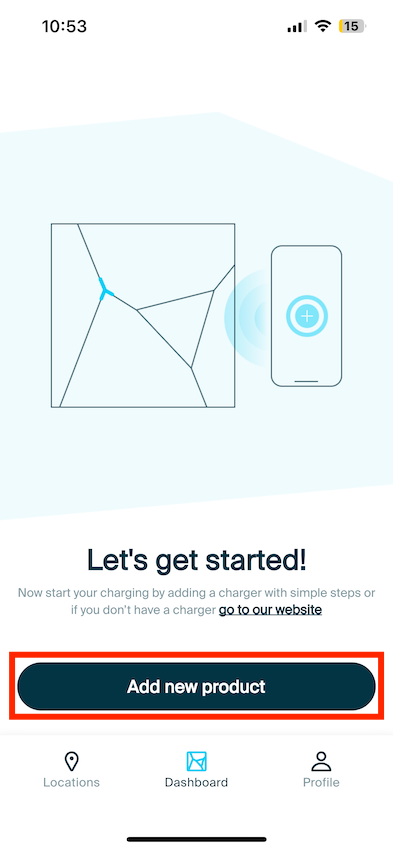
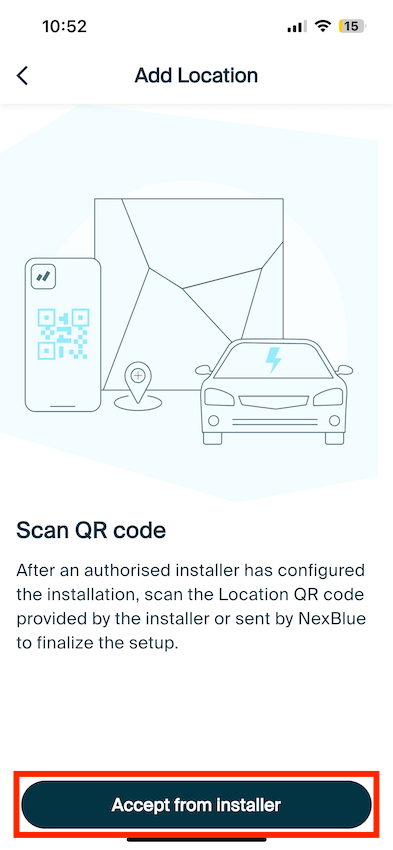
I detta skede skannar du QR-koden antingen på installatörens enhet eller i din e-post för att få plats-ID. När du har fått ID:t accepterar du platsen.
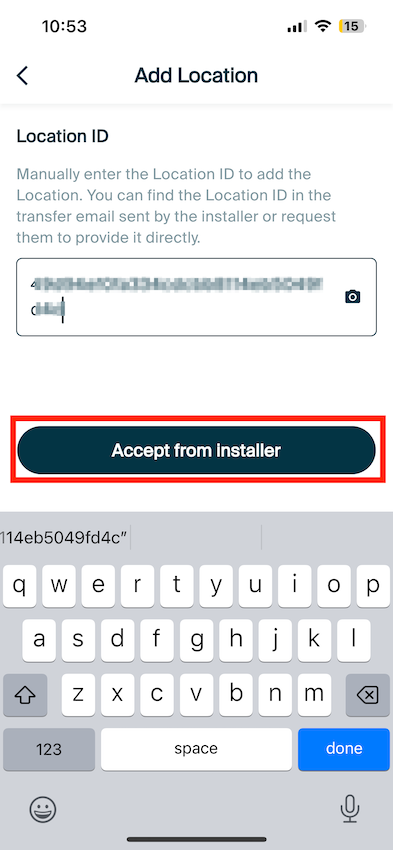
Platsen och tillhörande produkter bör nu visas i din myNexBlue-app!
Jag har inte fått någon QR-kod till min e-postadress och har inte heller skannat av installatörens enhet. Enheten lyser konstant vitt.
Om enheten blinkar vitt har den konfigurerats av installatören. För att ta över äganderätten till den plats där laddningsstationen har installerats måste installatören överföra den till dig. Kontakta installatören, som bör kunna göra detta genom ett antal olika alternativ.
Jag har inte fått någon QR-kod till min e-postadress och har inte heller skannat av installatörens enhet. Enheten blinkar gult.
Om din enhet blinkar gult har installatören inte konfigurerat laddningspunkten. Det är viktigt att installatören konfigurerar laddningspunkten för att säkerställa att den fungerar inom säkra gränser för dig och inte överskrider några lokala begränsningar för ström. I detta fall bör du kontakta installationsföretaget och informera dem om detta, så att de kan återvända till platsen för att driftsätta enheten eller kontakta NexBlue supportteam med nödvändig information så att vi kan konfigurera den åt dem.
Uppdaterad den 18 maj 2026