


Hej, hvordan kan vi hjælpe?
- Sådan overføres en placering mellem slutbrugere
- Installationscheckliste
- Løsning af fejl ved ventetid ved tilbagefald (kun for installatører)
- Sådan bestiller du en Point
- Sådan tilsluttes ladestationen til 4G under/efter installationen
- Sådan oprettes og administreres placeringer
- Hvad er en placering, og hvorfor er den vigtig?
- Sådan overføres ejerskabet til kunden (NexBlue App)
- Fasevridning
- Ventetid for fejl
- Hvor er stikket til min ladZen?
- Sådan gør du en ladestation fast tilsluttet (ledningen forbliver tilsluttet)
- Sådan ændres lysstyrken på ladestationens lys
- Sådan tilføjer du et opladningspunkt/en belastningsbalancer til din placering
- Sådan bestiller du en Point
- Sådan tilsluttes ladestationen til 4G under/efter installationen
- RCD-testprocedure
- Sådan kontrolleres det, om et produkt har udvist uventet adfærd
- Reststrømsbeskyttelse
- Fasevridning
- Tilslut NexBlue Zen Load Balancer) til NexBlue
- Ventetid for fejl
- Hvor er stikket til min ladZen?
- Løsning af fejl ved ventetid ved tilbagefald (kun for installatører)
- Sådan tilføjer du et opladningspunkt/en belastningsbalancer til din placering
- Sådan bruger du solenergi til at oplade din bil
- Sådan kontrolleres det, om et produkt har udvist uventet adfærd
- Sådan tilsluttes NexBlue Zen smart måler) til Wi-Fi
- Integrer solcellepanelterminal med belastningsbalancer
- Sådan tilføjer du en placering, der er blevet delt med dig
- Hvor er stikket til min ladZen?
- Sådan deler du en placering med en person/organisation
- Sådan opretter/tilmelder du dig/inviterer nogen til en organisation
- Sådan tilsluttes ladestationen til 4G under/efter installationen
- Sådan udfører du en fabriksindstilling af et produkt
- Sådan oprettes og administreres placeringer
- Sådan kontrolleres det, om et produkt har udvist uventet adfærd
- Opladningsstatus
- Fasevridning
- Sådan overføres ejerskabet til slutkunden (Partnerportal)
- Forudgående konfiguration: Fjernbetjent færdiggørelse af installationskonfigurationen på portalen
- Skal alle nye installatører have et brugernavn og en adgangskode?
- Hvordan skifter man hovedsikringen på Partnerportalen?
- Sådan overføres en placering mellem slutbrugere
- Sådan tilsluttes en oplader til WiFi
- Eksport af opladningsdata
- Tilslut NexBlue Zen Load Balancer) til NexBlue
- Ventetid for fejl
- Hvor er stikket til min ladZen?
- Sådan gør du en ladestation fast tilsluttet (ledningen forbliver tilsluttet)
- Sådan ændres lysstyrken på ladestationens lys
- Sådan tilføjer du et opladningspunkt/en belastningsbalancer til din placering
- Sådan opretter du forbindelse til din takst (EcoPilot)
- Sådan indstilles maksimal ladestrøm
- Sådan indstilles opladningsplanen
- En anden person ønsker at benytte min ladestation. Hvordan kan jeg dele den med vedkommende?
- Sådan bruger du solenergi til at oplade din bil
- Sådan tilføjer du et ladested i myNexBlue-appen
- Sådan tilsluttes NexBlue Zen smart måler) til Wi-Fi
- Hvordan konfigureres enfaset opladning?
- Opladeren eller load balanceren opretter ikke forbindelse via Bluetooth
- Firewallkrav til NexBlue Ladepunkter
- Løsning af fejl ved ventetid ved tilbagefald (kun for installatører)
- Hvorfor har jeg modtaget en e-mail-advarsel om min(e) ladestation(er)?
- Min ladestation er tændt, men lyset på enheden er ikke tændt.
- RCD Test Procedure
- Begivenhedsliste
- Sådan kontrolleres det, om et produkt har udvist uventet adfærd
Indholdsfortegnelse
Løsning af fejl ved ventetid ved tilbagefald (kun for installatører)
Indholdsfortegnelse
Trinene i denne vejledning må kun udføres af fagfolk med elektrisk uddannelse.
For en placering med en NexBlue Zen et opladningspunkt kan opladningspunktet stadig bruges, hvis Zen forbindelsen til skyen, hvis begge enheder er tæt nok på hinanden til at kommunikere via radiofrekvens (op til 50 m i fri luft eller tilsvarende). Hvis de ikke kan kommunikere, ellerZen NexBlue Zen installeret på en placering, hvor den balancerer belastningen mellem flere opladningspunkter, kræves der en internetforbindelse for Zen etablere Zen .
Uden en internetforbindelse kan ladestationerne ikke registrere den tilgængelige strøm, der kan bruges sikkert. Hvis ladestationerne ikke registrerer, hvor meget strøm der er tilgængelig på lokationen, kan de ikke bruges, og kunden vil modtage en "Fallback waiting error"-meddelelse i appen.
Det første, kunden bør forsøge, er Zen genoprette Zen internetforbindelse, enten via ethernet eller via Wi-Fi, som forklaret i denne vejledning.
Hvis det ikke er muligt at oprette forbindelse, skal en uddannet elektriker komme ud til stedet. Det første, man skal forsøge, er at genoprette Zen undersøge eventuelle problemer med internetforbindelsen eller firewall-reglerne. Hvis dette er gjort, og man har talt med NexBlue supportteam, ogZen bekræftet, at NexBlue Zen er defekt, skal den udskiftes.
Hvis ladestationerne skal bruges i en periode, hvor Zen ikke er installeret eller ikke har en pålidelig internetforbindelse, skal du følge nedenstående trin for at få opladerne til at fungere igen.
Sådan aktiveres opladning ved lavere hastighed
Det første skridt mod at tillade ladestationerne at oplade uden Zen at sænke deres hastighed. Ladestationernes hastighed bør ændres til en sikker værdi, som installatøren selv skal fastsætte. Det er vigtigt at understrege, at ladestationerne stadig vil overholde deres sikringsgrænser, men den samlede strøm, som hvert kredsløb plus ikke-EV-belastninger bruger, overvåges ikke uden Zen, og derfor bør opladningshastigheden indstilles ud fra det værst tænkelige scenario, hvor alle andre belastninger er på deres sandsynlige maksimum. Denne vejledning kan følges for at vise, hvordan man ændrer den maksimale effekt for et ladepunkt.
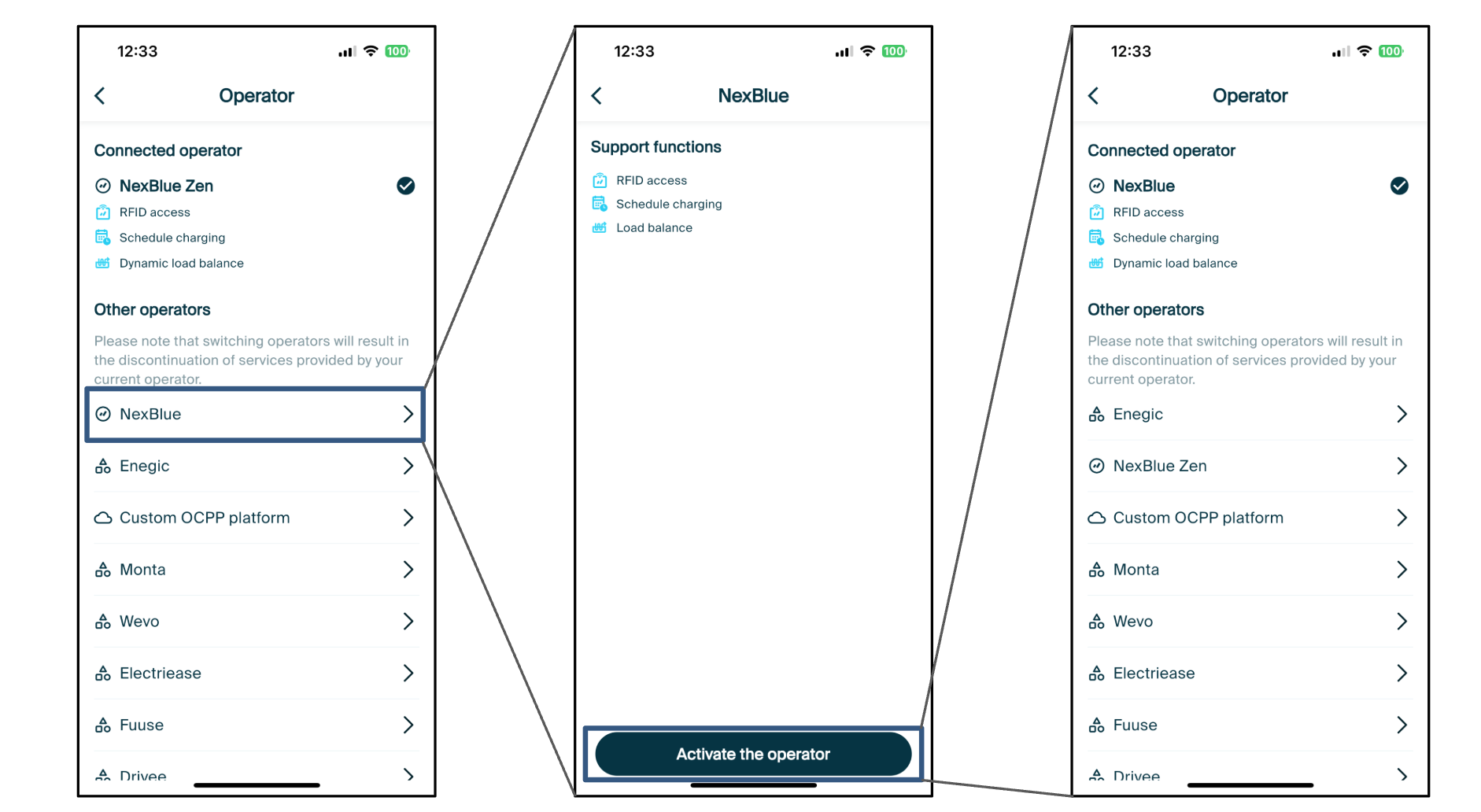
Når ladestationerne på stedet er blevet nedgraderet, kan du midlertidigt deaktivere Zen. Når Zen senere Zen online igen, skal du følge disse instruktioner i omvendt rækkefølge for at genstarte den og opgradere opladerne til deres tidligere hastigheder.
Det første skridt er at navigere til operatørsiden for den pågældende placering.
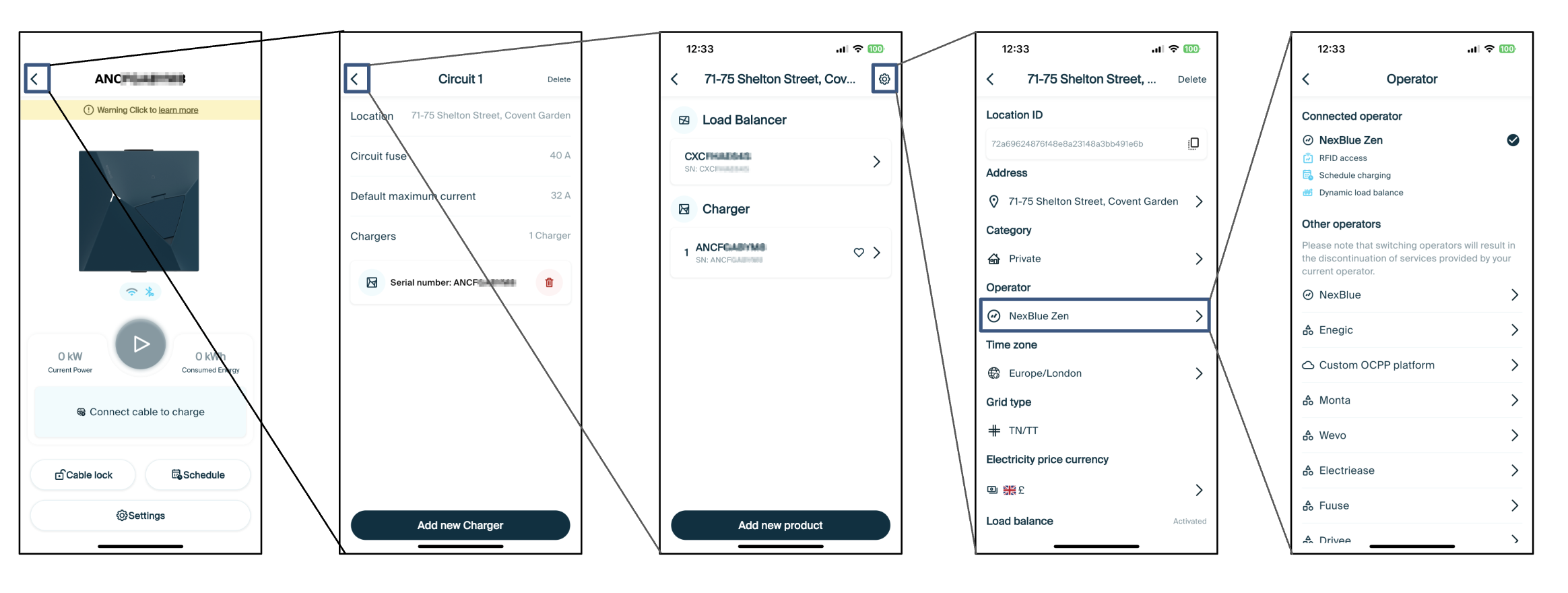
Når du er på operatørsiden, er det næste trin at ændre operatøren for placeringen fra "NexBlue Zen" til "NexBlue". Når dette er aktiveret, Zen ikke længere nødvendigt til opladning, men det betyder, at det er vigtigt, at ladestationerne oplader langsomt nok til, at der ikke er risiko for, at de overskrider ejendomsgrænserne, som forklaret ovenfor.
Opdateret den 18. maj 2026