


Hola, ¿en qué podemos ayudarle?
- Cómo transferir una ubicación entre usuarios finales
- Lista de comprobación de la instalación
- Resolución del error de espera de reserva (solo para instaladores)
- Cómo poner en servicio un Point NexBlue
- Cómo conectar el punto de carga a 4G durante/después de la instalación
- Cómo crear y gestionar ubicaciones
- ¿Qué es una ubicación y por qué es importante?
- Cómo transferir la propiedad al cliente (aplicaciónNexBlue )
- Rotación de fase
- Error de espera de reserva
- ¿Dónde está el pin de mi punto de recargaZen?
- Cómo hacer que un punto de carga quede conectado (el cable permanece enchufado)
- Cómo cambiar el brillo de la luz del punto de carga
- Cómo añadir un punto de recarga/equilibrador de carga a tu ubicación
- Cómo poner en servicio un Point NexBlue
- Cómo conectar el punto de carga a 4G durante/después de la instalación
- Procedimiento de prueba del RCD
- Cómo comprobar si un producto ha experimentado algún comportamiento inesperado
- Protección contra corriente residual
- Rotación de fase
- Conecte el NexBlue Zen equilibrador de carga) a NexBlue
- Error de espera de reserva
- ¿Dónde está el pin de mi punto de recargaZen?
- Resolución del error de espera de reserva (solo para instaladores)
- Cómo añadir un punto de recarga/equilibrador de carga a tu ubicación
- Cómo utilizar la energía solar para cargar tu coche
- Cómo comprobar si un producto ha experimentado algún comportamiento inesperado
- Cómo conectar el NexBlue Zen medidor inteligente) a Wi-Fi
- Integrar el terminal del panel solar con el equilibrador de carga.
- Cómo añadir una ubicación que se ha compartido contigo
- ¿Dónde está el pin de mi punto de recargaZen?
- Cómo compartir una ubicación con una persona/organización
- Cómo crear/unirse/invitar a alguien a una organización
- Cómo conectar el punto de carga a 4G durante/después de la instalación
- Cómo realizar un restablecimiento de fábrica de un producto
- Cómo crear y gestionar ubicaciones
- Cómo comprobar si un producto ha experimentado algún comportamiento inesperado
- Estado de carga
- Rotación de fase
- Cómo transferir la propiedad al cliente final (Portal de socios)
- Preconfiguración: complete de forma remota la configuración de la instalación en el portal.
- ¿Todos los nuevos instaladores necesitan obtener un nombre de usuario y una contraseña?
- ¿Cómo cambiar el fusible principal en el Portal del socio?
- Cómo transferir una ubicación entre usuarios finales
- Cómo conectar un cargador a WiFi
- Exportación de datos de carga
- Conecte el NexBlue Zen equilibrador de carga) a NexBlue
- Error de espera de reserva
- ¿Dónde está el pin de mi punto de recargaZen?
- Cómo hacer que un punto de carga quede conectado (el cable permanece enchufado)
- Cómo cambiar el brillo de la luz del punto de carga
- Cómo añadir un punto de recarga/equilibrador de carga a tu ubicación
- Cómo conectarse a su tarifa (EcoPilot)
- Cómo configurar la corriente máxima de carga
- Cómo configurar el horario de carga
- Otra persona quiere utilizar mi punto de recarga, ¿cómo puedo compartirlo con ella?
- Cómo utilizar la energía solar para cargar tu coche
- Cómo añadir un punto de recarga en la aplicación myNexBlue
- Cómo conectar el NexBlue Zen medidor inteligente) a Wi-Fi
- ¿Cómo configurar la carga monofásica?
- El cargador o el equilibrador de carga no se conecta por Bluetooth
- Requisitos de firewall para NexBlue Puntos de carga
- Resolución del error de espera de reserva (solo para instaladores)
- ¿Por qué he recibido una alerta por correo electrónico sobre mi(s) punto(s) de recarga?
- Mi punto de recarga está encendido, pero la luz de la unidad no se enciende.
- Procedimiento de prueba del RCD
- Lista de eventos
- Cómo comprobar si un producto ha experimentado algún comportamiento inesperado
Índice
- Cómo añadir un punto de recarga
- No he recibido ningún código QR en mi correo electrónico ni lo he escaneado desde el dispositivo del instalador, la unidad permanece en blanco constante.
- No he recibido ningún código QR en mi correo electrónico ni lo he escaneado desde el dispositivo del instalador, la unidad parpadea en amarillo.
Cómo añadir un punto de recarga en la aplicación myNexBlue
Índice
- Cómo añadir un punto de recarga
- No he recibido ningún código QR en mi correo electrónico ni lo he escaneado desde el dispositivo del instalador, la unidad permanece en blanco constante.
- No he recibido ningún código QR en mi correo electrónico ni lo he escaneado desde el dispositivo del instalador, la unidad parpadea en amarillo.
La mayoría de los clientes prefieren utilizar la aplicación myNexBlue para controlar su punto de recarga. Ya sea para configurar un nuevo horario, conectarse a su tarifa para importar horarios automatizados o compartir el cargador con amigos y familiares, la aplicación myNexBlue es el lugar ideal para hacerlo todo.
Sin embargo, para poder hacer todo eso y mucho más, necesitas tener el punto de recarga al que necesitas acceder en tu aplicación. Es importante tener en cuenta que los códigos QR de tus puntos de recarga y del manual de instalación son para que los configure el instalador, NO para que el cliente los utilice para tomar posesión del punto de recarga. A continuación se detalla el método de conexión que necesitas.
Cómo añadir un punto de recarga
Si usted es el propietario del punto de recarga, debe tener control total desde el momento de la instalación. Antes de que el instalador abandone el lugar, debe transferirle la ubicación del punto de recarga. De esta manera, usted tendrá acceso a todos los dispositivos que se hayan instalado en la ubicación específica que se creó durante la configuración.
Cuando el instalador haya terminado la instalación, deberá mostrarle el código QR único en su teléfono o tomar su dirección de correo electrónico, lo que significa que el código se enviará automáticamente a su correo electrónico. Para añadir el punto de recarga, siga los siguientes pasos:
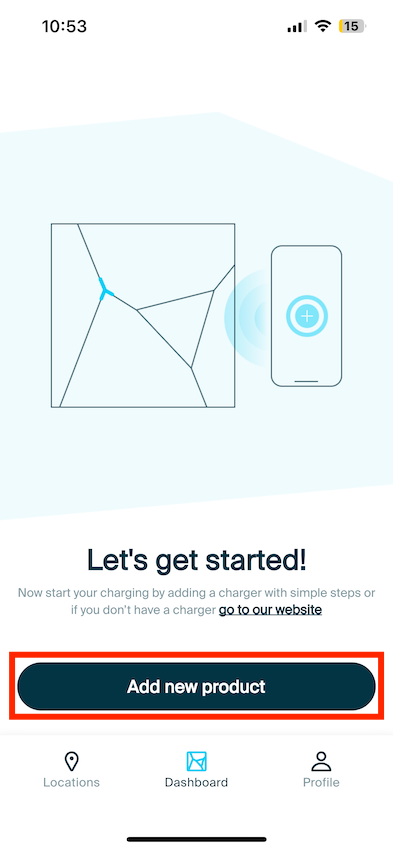
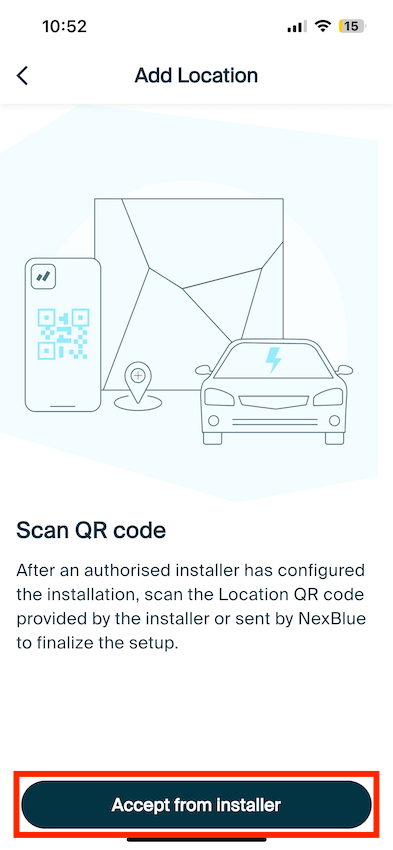
En esta etapa, escanee el código QR en el dispositivo del instalador o en su correo electrónico para obtener el ID de ubicación. Una vez obtenido el ID, acepte la ubicación.
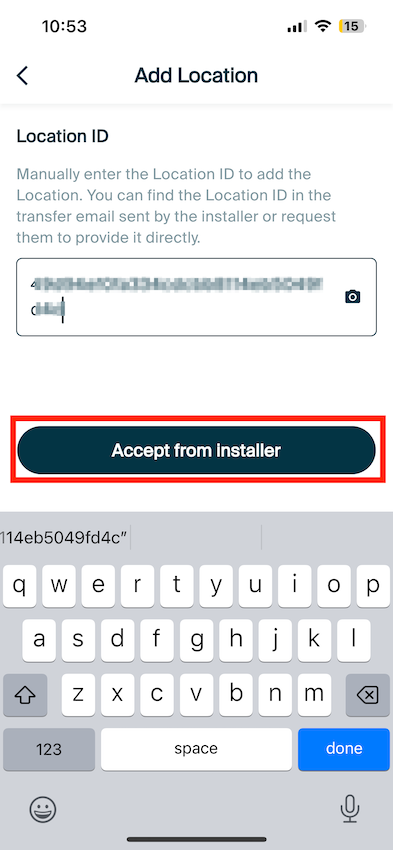
¡La ubicación y los productos asociados deberían aparecer ahora en tu aplicación myNexBlue!
No he recibido ningún código QR en mi correo electrónico ni lo he escaneado desde el dispositivo del instalador, la unidad permanece en blanco constante.
Si la unidad parpadea en blanco, significa que ha sido configurada por el instalador. Para poder tomar posesión de la ubicación en la que se ha instalado el punto de recarga, el instalador debe transferírsela a usted. Póngase en contacto con el instalador, que podrá hacerlo a través de las múltiples opciones de que dispone.
No he recibido ningún código QR en mi correo electrónico ni lo he escaneado desde el dispositivo del instalador, la unidad parpadea en amarillo.
Si su unidad parpadea en amarillo, significa que el instalador no ha configurado el punto de carga. Es fundamental que el instalador configure el punto de carga para garantizar que funcione dentro de los límites de seguridad y no supere ninguna restricción local en materia de energía. En este caso, debe ponerse en contacto con la empresa instaladora e informarles de esta situación. A continuación, deben volver al lugar para ponerlo en marcha o ponerse en contacto con el equipo de asistencia NexBlue con la información necesaria y nosotros lo configuraremos en su nombre.
Actualizado el 18 de mayo de 2026